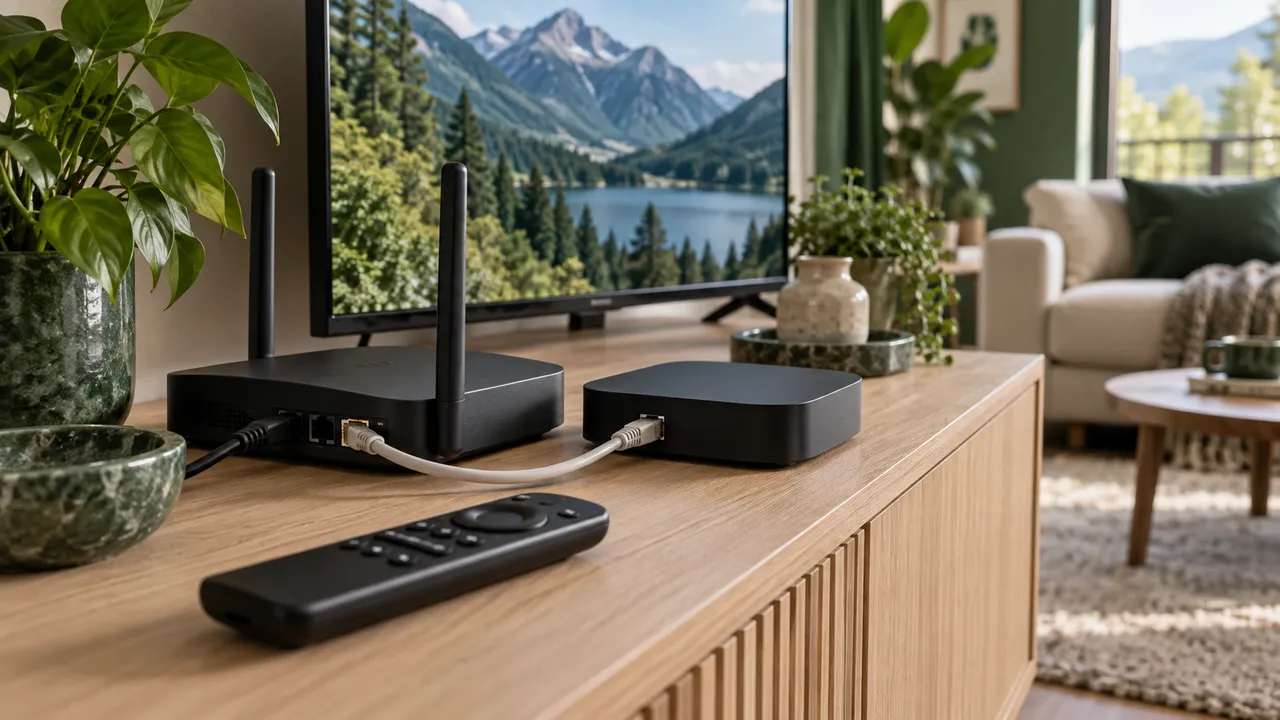
If you have just picked up an Android TV device and your IPTV provider has sent you a link or some login credentials, this guide is for you. We will explain what IPTV actually is, how Android TV works, which apps are worth using, and how to get everything running from scratch — no technical experience required.
What Is IPTV?
IPTV stands for Internet Protocol Television. Instead of receiving TV channels through a satellite dish or a cable connection, your TV receives them over your regular internet connection. The content is streamed as data packets, just like a YouTube video, but IPTV is usually provided by a dedicated subscription service and covers live TV channels, an on-demand video library, and catch-up programming.
Think of it like this: traditional TV uses a one-way broadcast that goes out to everyone at once. IPTV is more like requesting a specific video stream just for your device, which is why picture quality can be higher and the channel list can be massive.
There are two main ways your IPTV provider will give you access:
- M3U URL — a single web link that, when loaded into an IPTV player app, delivers your full channel list.
- Xtream Codes — a server address, a username, and a password. This is the more common and generally more reliable method.
Your provider will tell you which one you have. Keep these details handy — you will need them during setup.
What You Need Before You Start
Before touching any apps, make sure you have the following:
- An Android TV device — this could be a Sony, Philips, or TCL smart TV with Android TV built in, an NVIDIA SHIELD, a Chromecast with Google TV, or a standalone Android TV box such as a Xiaomi Mi Box.
- A valid IPTV subscription — either an M3U URL or Xtream Codes credentials (server URL, username, password). Free IPTV sources do exist but tend to be unreliable; a paid subscription from a reputable provider is strongly recommended.
- A stable internet connection — at least 25 Mbps download for HD channels. For 4K content, aim for 50 Mbps or more. A wired Ethernet connection is always more stable than Wi-Fi.
- A Google account — needed to download apps from the Google Play Store.
How Android TV Differs from Regular Android
You might already use an Android phone or tablet, and Android TV feels similar in many ways — but there are important differences.
Android TV is designed for a 10-foot interface. Everything on screen is large and navigated with a remote control. You do not tap the screen; you press directional buttons, OK/Enter, and Back. The Google Play Store on Android TV only shows apps that have been optimised for TV use — not every phone app is available here.
Sideloading is possible but less common. Some IPTV apps are not on the Play Store. On Android TV you can install APK files (the Android app format) manually, a process called sideloading. We will cover this briefly later.
Storage and memory are more limited. Most Android TV devices have 8–16 GB of internal storage and 2–4 GB of RAM. Keep this in mind — do not install dozens of apps you do not use.
Choosing an IPTV Player for Android TV
There are many IPTV player apps available. Here are two that are particularly well-suited for beginners on Android TV.
IBO Player
IBO Player is one of the most popular IPTV apps for Android TV and it is available directly from the Google Play Store. It supports both M3U playlists and Xtream Codes, loads large channel lists quickly, and has a clean TV-friendly interface.
Key features:
- Hardware-accelerated video decoding (smoother playback, less CPU heat)
- Built-in Electronic Programme Guide (EPG) support
- Favourite channels list
- Multiple playlist support (useful if you have more than one subscription)
- VOD and series support via Xtream Codes
IBO Player is a strong first choice for most beginners.
Hush Player
Hush Player is a newer option that has been gaining popularity for its minimalist interface and fast channel switching. It is less cluttered than some competitors, which makes it easy to navigate with a remote control.
Key features:
- Clean, remote-friendly TV interface
- Good support for high-bitrate 4K streams
- EPG integration
- Parental controls
- Supports M3U and Xtream Codes
Hush Player is a good alternative if you find IBO Player’s interface too busy, or if you want a slightly more modern feel.
Step-by-Step: Setting Up IBO Player on Android TV
Let us walk through a complete first-time setup using IBO Player, since it is the most widely used.
Step 1: Install IBO Player
- On your Android TV home screen, navigate to the Google Play Store (it should be on the home row of apps).
- Use the remote to select the search bar and type IBO Player.
- Select IBO Player or IBO Player Pro from the results.
- Press Install and wait for the download to complete.
- Once installed, press Open.
Step 2: Accept Permissions
On the first launch, IBO Player may ask for permission to access storage and the network. Accept these — they are required for the app to function.
Step 3: Add Your Playlist via Xtream Codes (Recommended)
- On the IBO Player home screen, select Add Playlist.
- Choose Xtream Codes from the options.
- Give your playlist a name — anything you like, such as “My IPTV” or your provider’s name.
- Enter the Server URL (example:
http://yourprovider.com:8080) - Enter your Username and Password exactly as provided.
- Select Add or Confirm.
IBO Player will contact the server and download your channel list, VOD library, and series automatically. This can take anywhere from a few seconds to a couple of minutes depending on how large your subscription is.
Step 4: Add Your Playlist via M3U URL
If your provider gave you an M3U link instead:
- Select Add Playlist, then choose M3U URL.
- Give it a name.
- Paste your M3U URL in the URL field. It usually looks something like:
http://yourprovider.com/get.php?username=abc&password=xyz&type=m3u - Select Add.
Step 5: Browse Your Channels
Once the playlist loads, you will see your channels grouped into categories (usually based on country or genre). Use the directional buttons to browse, and press OK to start playing a channel.
Step 6: Set Up the EPG
The EPG (Electronic Programme Guide) shows you what is on now and what is coming up, just like a traditional TV guide.
- Go to Settings inside IBO Player.
- Select EPG Settings.
- If you used Xtream Codes, the EPG URL may already be filled in automatically. If it is blank, ask your IPTV provider for their EPG URL.
- Set the refresh interval to 12 hours.
- Save and exit. Press the EPG button (or long-press a channel) to open the guide.
Understanding M3U Playlists and Xtream Codes
These two terms come up constantly in IPTV. Here is what they actually mean.
M3U Playlists
An M3U file is a plain text file that contains a list of stream URLs, one for each channel. When an IPTV app loads an M3U URL, it reads this file and creates a channel list from it. Every time you open the app, it can re-download the M3U to get the latest channel list.
The downside of M3U is that it is a simple format — it tells the app where the streams are, but not much else. EPG data, VOD content, and on-demand categories are all handled separately.
Xtream Codes
Xtream Codes is a more complete API (Application Programming Interface) used by many IPTV providers. Instead of just a URL, you get a server address and login credentials. The app connects to the server and can then retrieve:
- Live TV channels
- VOD (Video on Demand) movies
- Series/TV shows
- EPG data
- Account information (expiry date, connection limits)
Xtream Codes is generally preferred because it gives IPTV apps more information and allows for better features like series libraries and automatic EPG matching.
Common Beginner Mistakes to Avoid
Mistake 1: Using Wi-Fi When Ethernet Is Available
Wi-Fi is convenient but can be inconsistent. Walls, interference from other devices, and router placement all affect reliability. If your Android TV device has an Ethernet port (most do), use a wired connection for much more stable streaming.
Mistake 2: Using Wrong Credentials
Copy-paste your M3U URL or Xtream Codes credentials directly from your provider’s email rather than typing them manually. A single incorrect character will prevent the playlist from loading. Watch out for capital letters, zeros versus the letter O, and spaces.
Mistake 3: Ignoring Buffer Settings
The default buffer settings in most IPTV apps are conservative. If you have a fast connection and experience choppy playback, increase the buffer size in the app’s player settings (try 5–10 seconds as a starting point).
Mistake 4: Not Clearing Cache Periodically
IPTV apps cache data locally. Over time this can accumulate and cause slowdowns or errors. Go to Android TV Settings > Apps > [App Name] > Clear Cache every few weeks to keep things running smoothly.
Mistake 5: Installing APKs from Untrusted Sources
Sideloading APK files from unknown websites carries a real security risk. Stick to the official Google Play Store when possible. If a particular app is not on the Play Store, only download APKs from the developer’s official website.
Mistake 6: Not Rebooting After Updates
Android TV devices benefit from regular reboots. If you notice an app behaving strangely after a system update, a full power cycle (unplug, wait 30 seconds, plug back in) usually resolves it.
Glossary of IPTV Terms
Here is a quick reference for the terminology you will encounter most often.
| Term | Meaning |
|---|---|
| IPTV | Internet Protocol Television — streaming TV over the internet |
| M3U | A playlist file format listing stream URLs |
| Xtream Codes | An API system for connecting to an IPTV provider with login credentials |
| EPG | Electronic Programme Guide — the on-screen TV schedule |
| VOD | Video on Demand — movies and shows you can watch at any time |
| APK | Android Package Kit — the file format used to install Android apps |
| Sideloading | Installing an APK manually rather than via the Play Store |
| Bitrate | The amount of data per second used by a video stream — higher means better quality |
| Buffer | A small amount of video stored in advance to prevent interruptions |
| Hardware decoding | Using the device’s dedicated video chip to decode video, rather than the main processor |
| HEVC / H.265 | A video compression standard used for 4K streams — requires hardware support |
| HLS | HTTP Live Streaming — a common protocol used to deliver live IPTV streams |
Tips for the Best Experience
- Restart your router and Android TV device before your first session. A clean start eliminates many connection issues.
- Check your subscription expiry date — most Xtream Codes apps show this in the account or settings section. Renew before it expires to avoid interruptions.
- Test a few channels before judging quality. Some channels are encoded at lower bitrates than others. If one channel buffers but others play fine, it is likely a server-side issue with that specific channel.
- Use the Favourites feature to pin your most-watched channels for quick access. Scrolling through hundreds of channels every time is not practical.
Conclusion
Android TV is one of the best platforms for IPTV — the interface is designed for TV viewing, the hardware is powerful enough for 4K streams, and apps like IBO Player and Hush Player are mature, well-supported, and easy to use. Getting started takes less than 15 minutes if you have your subscription credentials ready.
The most important thing is to start simple: install one app, add one playlist, and make sure it works before exploring advanced settings. Once you have a working setup, you can explore EPG configuration, VOD libraries, and additional players at your own pace.
Welcome to IPTV on Android TV — enjoy your streams.