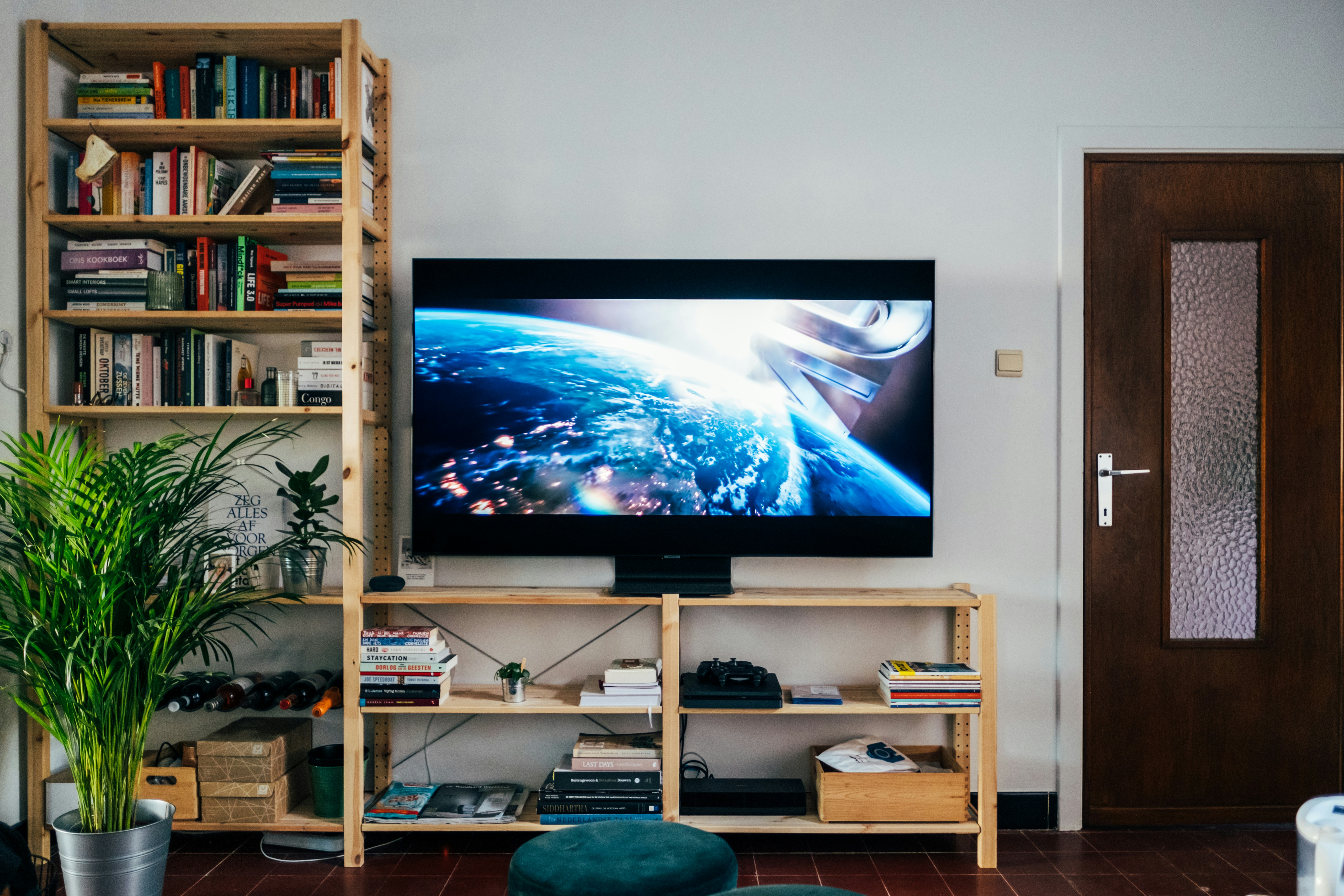
Hush Player Setup Guide (2026): Install, EPG, and Fixes
Hush Player setup guide covering installation, Xtream Codes and M3U login, EPG configuration, playback settings, and common fixes.

James Hartwell
· 12 min read
James Hartwell
IPTV Setup & Configuration
BOB Player is a popular IPTV player for Android phones, Android TV devices, and many Smart TV platforms. It is lightweight, quick to navigate on a remote, and works well with both M3U playlists and Xtream Codes logins. This guide walks you through a clean setup from scratch, then shows the settings that matter most for smooth playback, accurate EPG, and reliable daily use.
If you are setting up BOB Player on a TV device, it is also worth pairing a reliable remote (or using a device with a good built-in remote). Menu-heavy IPTV apps feel slow when navigation is difficult.
If BOB Player is not available in your region or device store, you may need to sideload the APK. Only use trusted sources provided by the developer or your IPTV provider, and avoid unofficial APK download sites.
BOB Player typically supports both ways to connect. If you have the option, Xtream Codes is usually the better choice because it gives the app a structured view of Live TV, VOD, and Series.
http:// or https://) and you do not have a separate username/password.If the playlist loads but categories look wrong, your provider may use non-standard group tags in the M3U file. That is normal. In that case, search and favourites become the most useful tools.
https://example.com:8443)If you see options for Live / VOD / Series selection during setup, keep them enabled unless you intentionally want a lighter playlist.
EPG issues are one of the most common reasons users think an IPTV app is broken. In most cases, the channels work fine but the guide data is missing or out of sync.
After connecting, open the EPG / TV Guide section and wait a few minutes for the first sync. On large playlists, the first EPG load can take longer than expected.
The best BOB Player settings depend on your device and IPTV stream type, but these are the highest-impact options to review.
Look for a Hardware Decoder / HW option:
If BOB Player has buffer settings:
If your stream buffers only during evening hours, the cause is often server congestion rather than your local device. A larger buffer can help, but it cannot fully compensate for an overloaded IPTV server.
For TV devices, Ethernet is more consistent than Wi-Fi:
Large playlists can contain thousands of channels. BOB Player becomes much easier to use when you rely on a few navigation habits.
Build a favourites list for your daily channels first. It reduces scrolling and makes testing issues easier.
If the app provides category management:
Search is usually the fastest way to find a channel when the playlist is messy. If you frequently search the same channel, add it to favourites right away.
On Android TV:
If the app slows down over time, clearing cache every few weeks is a practical maintenance step on low-storage devices.
BOB Player is straightforward once you have the basics set up correctly: add your playlist via Xtream Codes or M3U, let EPG finish its first sync, and then adjust decoder and buffer settings based on your device. After that, invest five minutes building a favourites list and your daily IPTV experience will feel much faster and more reliable.
Tags
James has been setting up IPTV systems for over 8 years. He specializes in Android-based players and configuration guides, helping thousands of users get the most out of their streaming setup.
@jameshartwell Hush Player setup guide covering installation, Xtream Codes and M3U login, EPG configuration, playback settings, and common fixes.
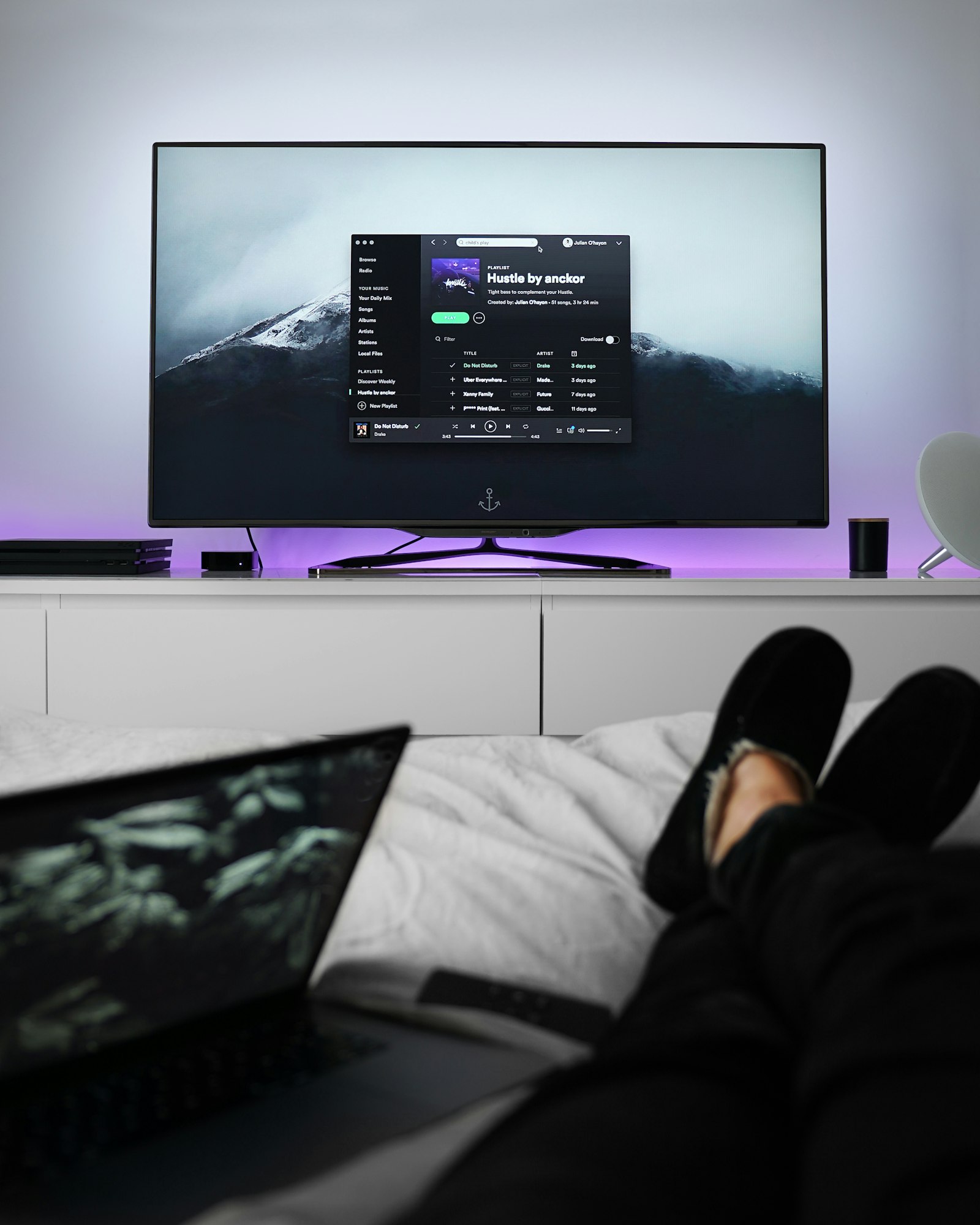
Step-by-step Duplex TV Belgium setup guide covering installation, playlist login, EPG setup, Proximus and Telenet tips, and common playback fixes.
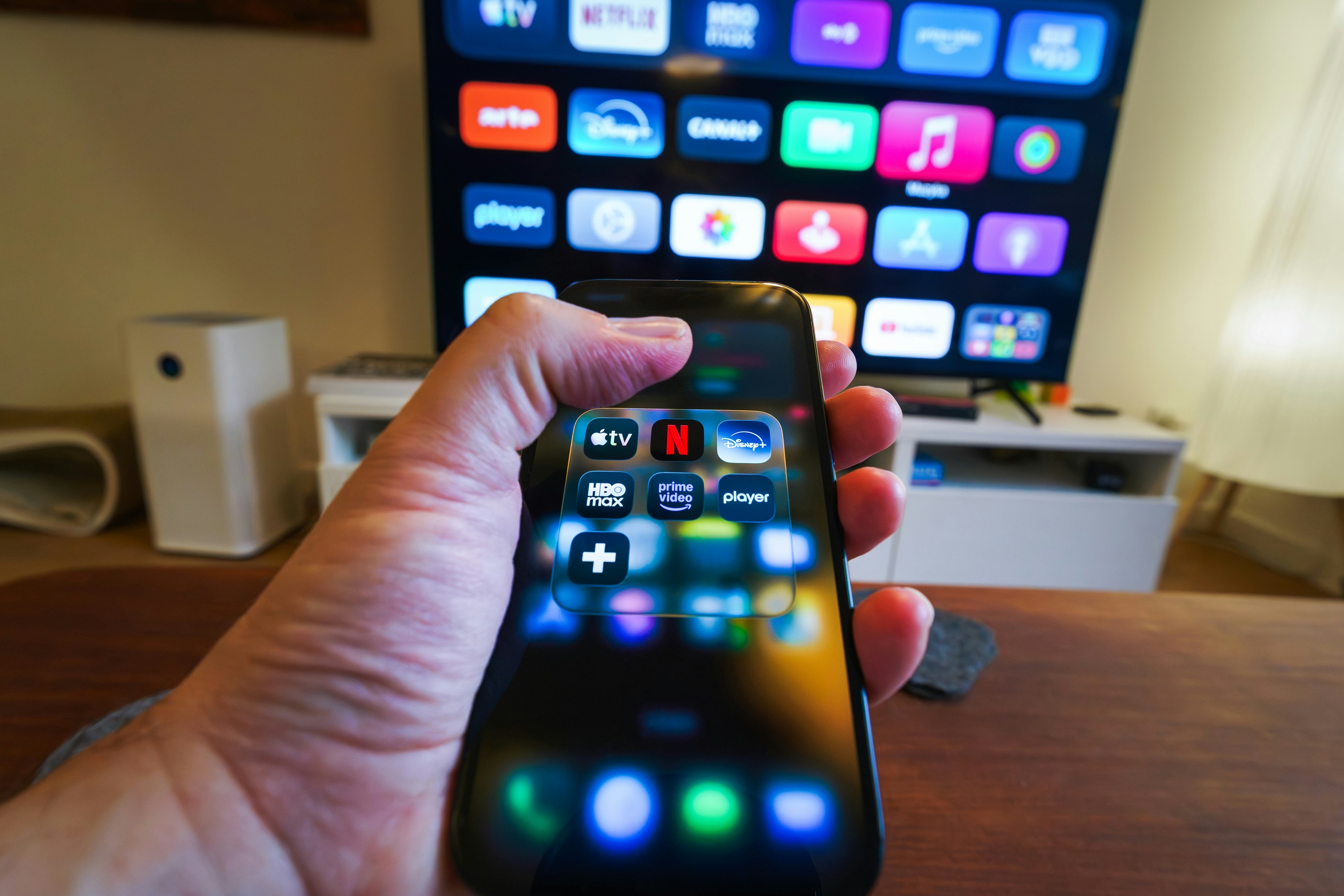
IBOXX IPTV setup guide covering installation, Xtream Codes and M3U login, EPG configuration, playback settings, and the most common fixes.